
Now that you’ve sold an iKhohka device to an outlet owner, it is time to create an iKhokha profile with the client. Do this by using clicking on this link on the outlet owner’s phone: https://bit.ly/ik-ufms.
Note: The UFMS profile registrations are prioritised by the iKhokha on-boarding team so make sure to use the link ending ik-ufms, and to make sure the client does as well. Share this link: https://bit.ly/ik-ufms with the outlet owner via WhatsApp. If they can’t complete the process immediately, they can use this same link to login later and finish the registration later.
Once the outlet owner has clicked on this link, the screen below will appear. You need to input the following according to the numbers on the image:
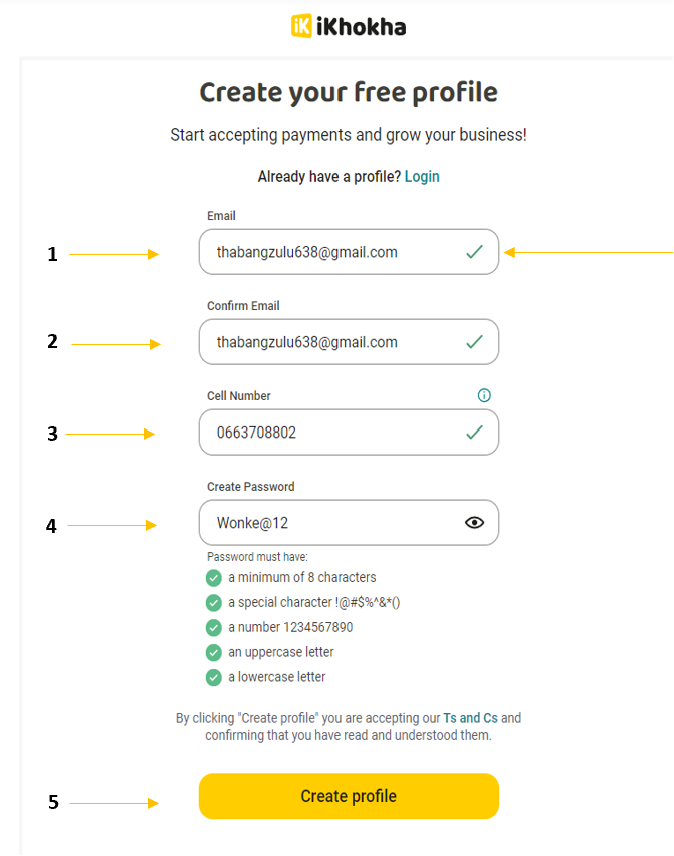
NB: This email is the client reference for iKhokha. They will need it for all communication. Sales reps need to make a note of this email address.
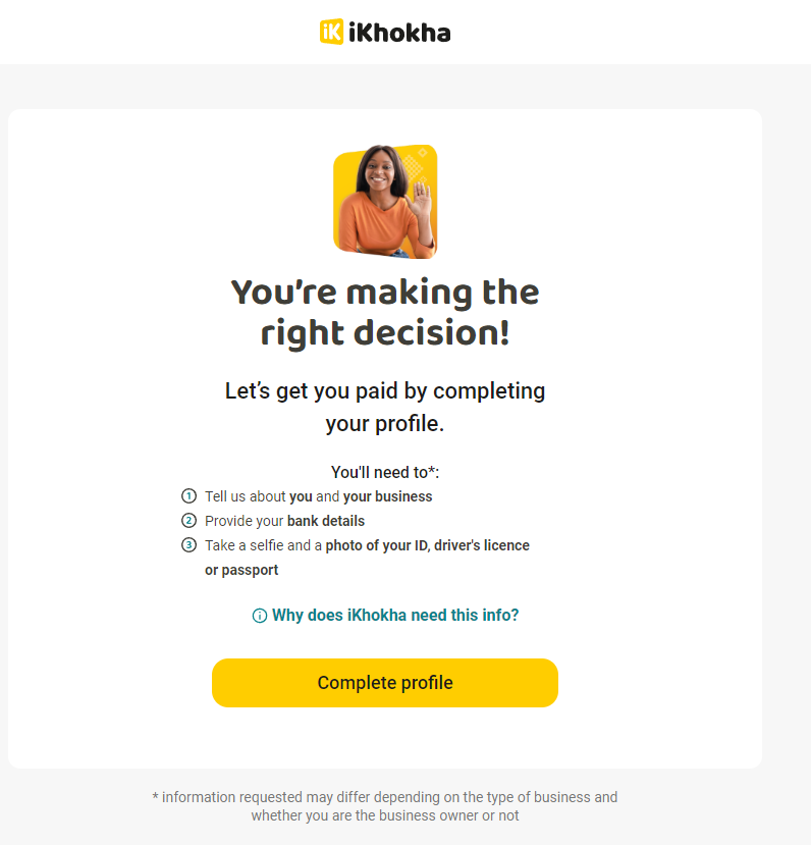
Once the profile has been created, the screen above will appear.
Depending on the nature of the business your client owns, you will need several specific documents to complete their profile, as well as to submit these documents to the iKhokha on-boarding team for FICA purposes after you’ve created the profile.
Depending on the nature of the business your client owns, you will need several specific documents to complete their profile, as well as to submit these documents to the iKhokha on-boarding team for FICA purposes after you’ve created the profile.
Click on the links below to see what documentation you will need:
If you have these documents, then click on ‘complete profile’.
You will now be guided on how to complete the profile, follow the prompts on each screen.
NB: If you don’t have the documents available, the client will receive a reminder email from iKhokha so that they can complete the profile at a later time. Alternatively, the owner can use the link: https://bit.ly/ik-ufms to log in and complete their profile at any time.
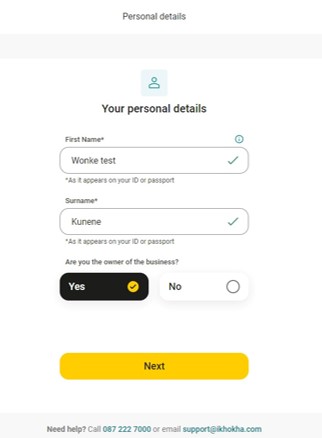
Make sure to enter the outlet owner’s name and surname as it appears on their ID.
Click ‘Yes/No’ depending on whether or not you are speaking to the owner of the business and then click ‘next’.
Note: If you answered ‘no‘ to whether this is the outlet owner, you will see this screen below pop up. The person who created the profile will be contacted by iKhokha on-boarding.

If you clicked on ‘yes‘, this is the outlet owner, then you’ll be directed to the screen below.
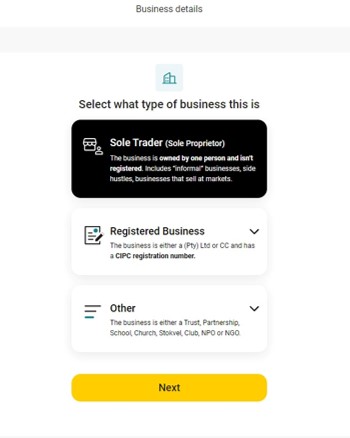
Select which business the owner operates, and click on ‘next‘.
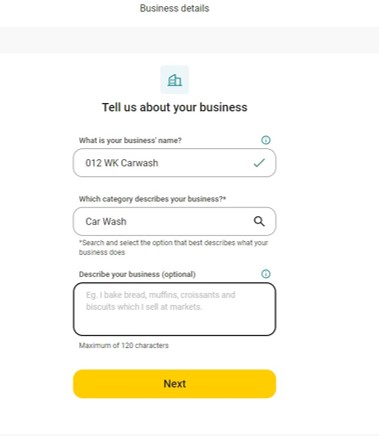
If you answer ‘Yes’, you can continue with the process. The screen above will pop up.
You can find the business name on either the banking statement or a municipal bill for example.
Use the ‘describe your business’ section to explain what the business does:
Example:
NB: If the name of the business doesn’t clearly indicate what business it is, like with Maggie’s Place in our example, there can be FICA issues. So, describe what the business does to avoid this problem.

The street address should pop up automatically. When you select the suggested address, it will auto populate the rest of the information.
If the address did not pop up automatically, then you can add the address manually. Once you’re done, click ‘next‘.
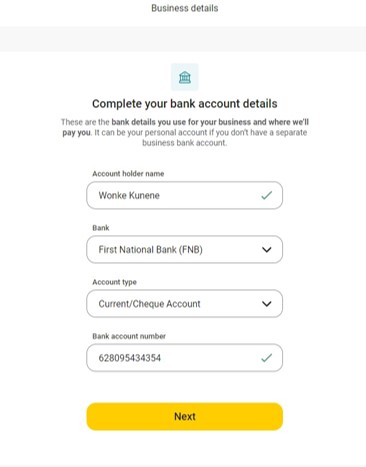
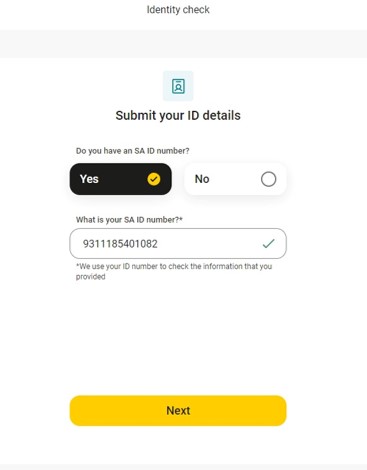
If the outlet owner has a South African ID number, click ‘yes’, enter the number. A green tick will appear if you’ve done it correctly and then click ‘next’.

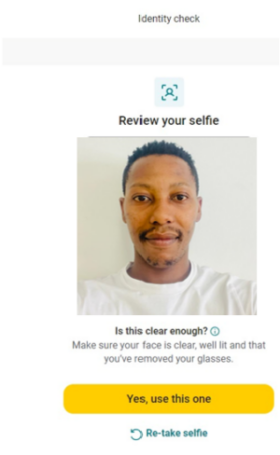
If you are happy with the photo, click ‘yes, use this one’.
NB: If the outlet owner does not have a South African ID number they will be directed to this page.
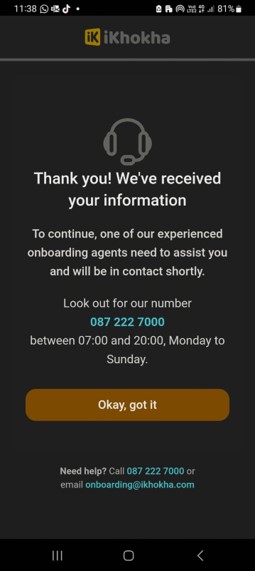
Their on-boarding will need to be done with the iKhokha on-boarding team due to different FICA requirements.
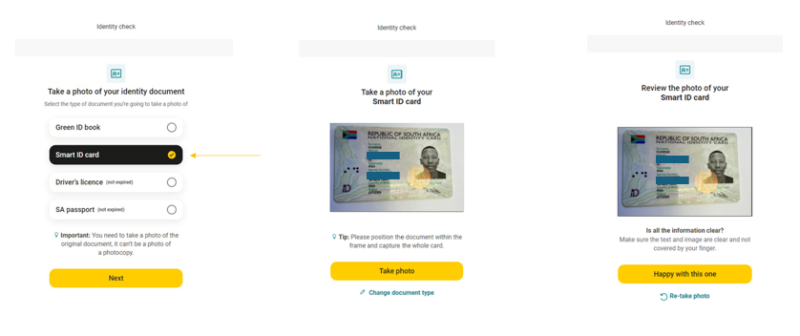
Once you are happy with the photo of the ID document, you click on ‘happy with this one‘.
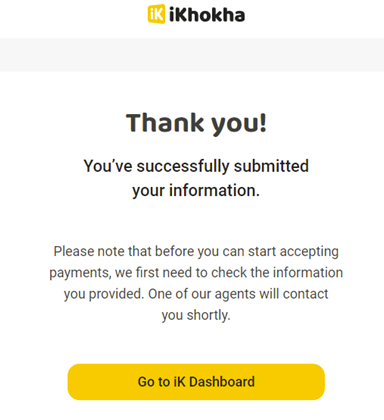
Once you’ve successfully on-boarded the outlet owner, there’s one more step you have to complete. You need to send supporting documents to iKhokha. Click here to learn how.
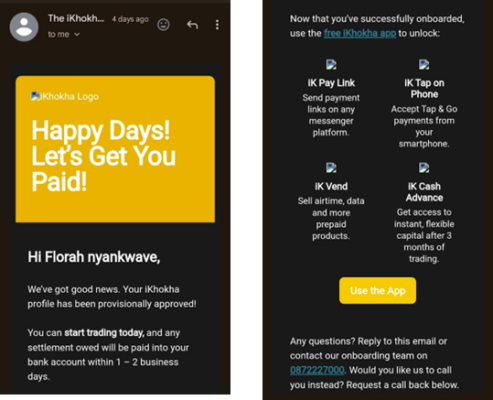
Now that the on-boarding documents have been shared with iKhokha, the outlet owner will receive a call from them AND an email (see images) to say that they are ready to begin trading.
This should be within 24 to 48 hours from the completion of the on-boarding process.
Click on this link to test your understanding of the iKhokha on-boarding process.
Learn how to register the client via email
Return to the iKhokha Training Centre